|
|
| (11 intermediate revisions by 2 users not shown) |
| Line 1: |
Line 1: |
| [[category:UniToken_Integration_Guide]] | | [[category:UniToken_Integration_Guide]] |
|
| |
|
| == UniToken GINA Package Installation == | | == UniToken GINA Package Installation == |
|
| |
|
| This part explains how to install the Standalone authentication package for Windows XP/2k that you can find inside the SDK. | | This section explains how to install the standalone authentication package for Windows XP/2k, which can be found inside the UniToken SDK. |
|
| |
|
| {| cellspacing="0" cellpadding="0" border="0" width="" | | {| class="wikitable" |
| |- | | |- |
| | width="50" | '''1''' | | | width="50" | '''1''' |
| | width="400" | Go to the folder: Integration Guides/Smart Card | | | width="400" | Navigate to the folder "Integration Guides/Smart Card Logon Feature/Standalone SmartCard logon(GINA)". Find the file "UniTokenGina.exe" and execute it to begin the installation. |
| Logon Feature/Standalone SmartCard | | | [[Image:GINA img01.jpg|370px]] |
| logon(GINA). <br>Find the file “UniTokenGina.exe” and double | |
| click it to begin the installation.<br><br>
| |
| | [[Image:GINA img01.jpg|370x259px]]<br><br> | |
| |- | | |- |
| | width="50" | '''2''' | | | width="50" | '''2''' |
| | width="400" | Click on [Next] in the welcome screen.<br> | | | width="400" | Click [Next] in the InstallShield welcome screen. |
| | [[Image:GINA img02.jpg|370px]]<br><br> | | | [[Image:GINA img02.jpg|370px]] |
| |- | | |- |
| | width="50" | '''3''' | | | width="50" | '''3''' |
| | width="400" | On the Installation welcome page, click on | | | width="400" | Click on [Install] to begin the installation. |
| [Next].<br> | | | [[Image:GINA img04.jpg|370px]] |
| | [[Image:GINA img03.jpg|370px]]<br><br> | |
| |- | | |- |
| | width="50" | '''4''' | | | width="50" | '''4''' |
| | width="400" | Click on [Install] to begin the installation.<br> | | | width="400" | After installation has completed, the computer must be restarted. Choose either option and click [Finish] to complete the wizard. |
| | [[Image:GINA img04.jpg|370px]]<br><br>
| | | [[Image:GINA img05.jpg|370px]] |
| |-
| |
| | width="50" | '''5'''
| |
| | width="400" | Choose “Yes, I want to restart my computer now”
| |
| and click [Finish].<br> | |
| | [[Image:GINA img05.jpg|370px]]<br><br> | |
| |} | | |} |
|
| |
|
| <br>
| | == Bind UniToken PRO to a Windows Account == |
| | |
| == Create a compatible SmartCard certificate == | |
| | |
| In this Tutorial, we will use a self-signed certificate to encrypt the disk with BitLocker, but you can also use a SmartCard Certificate signed by a Certificate Authority, but you have to make sure it is supported by BitLocker. Please go to Microsoft Website to get more information about the requirements for a compatible BitLocker certificate.
| |
| | |
|
| |
|
| {| cellspacing="0" cellpadding="0" border="0" width="" | | {| class="wikitable" |
| |-
| |
| | width="50" | '''1'''
| |
| | width="400" | In the [Start] menu, type regedit in the search field and when the regedit icon appears, right-click on it and choose [Run as administrator].<br><br>
| |
| | <center>[[Image:Bitlocker img07.jpg|370x259px]]</center><br><br>
| |
| |-
| |
| | width="50" | '''2'''
| |
| | width="400" | Go to HKEY_LOCAL_MACHINE\SOFTWARE\Policies\Microsoft\FVE and right click in the right pane. Choose [New] [DWORD(32-bit Value)]<br>
| |
| | [[Image:Bitlocker img08.jpg|370px]]<br><br>
| |
| |-
| |
| | width="50" | '''3'''
| |
| | width="400" | Name the DWORD value that you just created as “SelfSignedCertificates”<br>
| |
| | [[Image:Bitlocker img09.jpg|370px]]<br><br>
| |
| |- | | |- |
| | width="50" | '''4''' | | | width="50" | '''1''' |
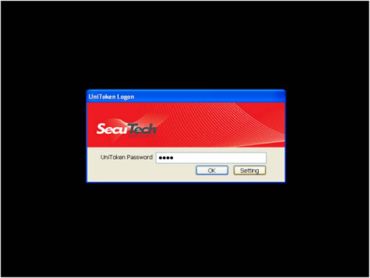
| | width="400" | Double click on the value you just created and set the field [Value data] to “1”. Click on OK to confirm and close regedit.<br> | | | width="400" | Insert your UniToken PRO device into your computer, input the PIN code for the token and click on [Settings]. |
| | [[Image:Bitlocker img10.jpg|370px]]<br><br>
| | | <center>[[Image:GINA img06.jpg|370px]]</center> |
| |- | | |- |
| | width="50" | '''5''' | | | width="50" | '''2''' |
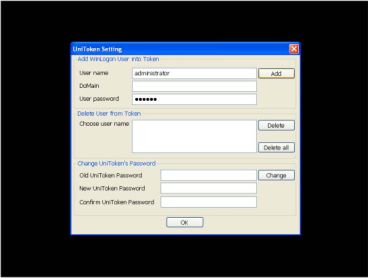
| | width="400" | Copy this text in a the notepad and save it as blcert.txt<br> | | | width="400" | In the "UniToken Settings" window, under the "Add WinLogon User into Token", input the username, domain (leave domain blank if the computer is not member of a domain) and password. Click [Add] to bind the user with the token. Click [OK] to finish. Note: You can also delete a user from the token and change your token PIN using this tool. |
| | [NewRequest] <br>
| | | [[Image:GINA img07.jpg|370px]] |
| | |
| Subject = "CN=BitLocker" <br>
| |
| | |
| KeyLength = 2048 <br>
| |
| | |
| ProviderName = "UniToken PRO CSP v2.0" <br>
| |
| | |
| KeySpec = "AT_KEYEXCHANGE" <br>
| |
| | |
| KeyUsage = "CERT_KEY_ENCIPHERMENT_KEY_USAGE"<br>
| |
| | |
| KeyUsageProperty = "NCRYPT_ALLOW_DECRYPT_FLAG"<br>
| |
| | |
| RequestType = Cert<br>
| |
| | |
| SMIME = FALSE<br>
| |
| | |
| [EnhancedKeyUsageExtension]<br>
| |
| | |
| OID=1.3.6.1.4.1.311.67.1.1<br>
| |
| <br><br>
| |
| |-
| |
| | width="50" | '''6'''
| |
| | width="400" | In the [Start] menu, type “cmd.exe” and when the cmd icon appears, right-click on it and choose [Run as administrator].<br>
| |
| | <center>[[Image:Bitlocker img12.jpg|300px]]</center><br><br>
| |
| |
| |
| |-
| |
| | width="50" | '''7'''
| |
| | width="400" | Go to where you save the file blcert.txt, right-click on it and choose [Properties], search for the field [location] and copy the path of your file.<br>
| |
| | <center>[[Image:Bitlocker img13.jpg|300px]]</center><br><br>
| |
| |-
| |
| | width="50" | '''8'''
| |
| | width="400" | Go back to the cmd console and type “cd (path of your file)” to go to the directory where it is saved.
| |
| Then type “certreq –new blcert.txt” to request the BitLocker certificate (make sure that your UniToken is correctly plugged before executing this operation)
| |
| .<br> | |
| | <center>[[Image:Bitlocker img14.jpg|300px]]</center><br><br> | |
| |} | | |} |
|
| |
|
| == Encrypt the hard disk with BitLocker == | | == Logging onto Windows == |
|
| |
|
| {| cellspacing="0" cellpadding="0" border="0" width="" | | {| class="wikitable" |
| |-
| |
| | width="50" | '''1'''
| |
| | width="400" | From the [Start] menu, type “BitLocker”, and from the results that appears, choose [Manage BitLocker].<br><br>
| |
| | [[Image:Bitlocker img15.jpg|370x259px]]<br><br>
| |
| |-
| |
| | width="50" | '''2'''
| |
| | width="400" | Choose the disk that you want to enable BitLocker and click on [Turn on BitLocker] on its right.<br>
| |
| | [[Image:Bitlocker img16.jpg|370px]]<br><br>
| |
| |-
| |
| | width="50" | '''3'''
| |
| | width="400" | On the screen [Choose how you want to unlock this drive], check [Use my smart card to unlock the drive] and click on [Next].<br>
| |
| ''Options differ depending if you encrypt a partition from your internal hard disk or an external disk. For now, UniToken cannot be used to encrypt the system partition.''
| |
| | [[Image:Bitlocker img17.jpg|370px]]<br><br>
| |
| |- | | |- |
| | width="50" | '''4''' | | | width="50" | '''1''' |
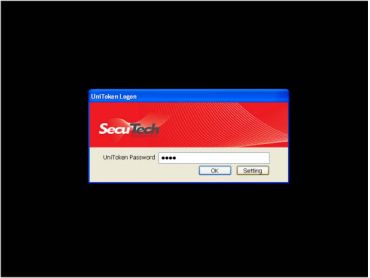
| | width="400" | On the screen [How do you want to store your recovery key?] Choose where you want to save the file containing the recovery key. You can also choose to print it.<br> | | | width="400" | When logging onto your computer, insert your UniToken, input your PIN and click on [OK]. |
| ''Make sure to keep the recovery key in a safe place, if you lose your SmartCard, it is the only way to decrypt the data on the encrypted drive. Otherwise, all the data will be lost.''
| | | [[Image:GINA img08.jpg|370px]] |
| | [[Image:Bitlocker img18.jpg|370px]]<br><br> | |
| |- | | |- |
| | width="50" | '''5''' | | | width="50" | '''2''' |
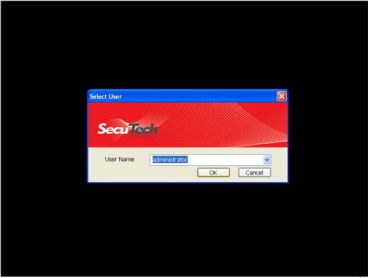
| | width="400" | On the screen [Are you ready to encrypt this drive].<br> | | | width="400" | Select the user account that you wish to log in as (You can store numerous Windows account settings within your UniToken). Click on [OK] to log in. Logging onto the computer now only requires the correct UniToken device with it's corresponding password and no longer the Windows account password to log on. |
| | [[Image:Bitlocker img19.jpg|370px]]<br><br>
| | | [[Image:GINA img09.jpg|370px]] |
| |-
| |
| | width="50" | '''6'''
| |
| | width="400" | Wait while the disk is encrypted, it can take a rather long time depending on your computer and the disk size. (On the tested configuration, encrypting a 8GB partition took around 30 minutes).<br>
| |
| | [[Image:Bitlocker img20.jpg|370px]]<br><br>
| |
| |-
| |
| | width="50" | '''7'''
| |
| | width="400" | When the dialog [Encryption of (disk letter) is complete] appears, the disk is protected, click on [Close] to finish. The encrypted disk will remain accessible until you remove it from your computer or reboot your computer.<br>
| |
| | [[Image:Bitlocker img21.jpg|370px]]<br><br>
| |
| |}
| |
| | |
| == Access to the encrypted disk ==
| |
| | |
| {| cellspacing="0" cellpadding="0" border="0" width=""
| |
| |-
| |
| | width="50" | '''1'''
| |
| | width="400" | When you insert the encrypted disk in your computer, the following dialog box will appear (you can also choose to unlock automatically the disk when it is inserted).<br>
| |
| Insert your UniToken and click on [Unlock]
| |
| <br>
| |
| | [[Image:Bitlocker img22.jpg|370px]]<br><br>
| |
| |-
| |
| | width="50" | '''2'''
| |
| | width="400" | You will be asked to type the User PIN for your UniToken to unlock the drive. The drive will be unlocked only if the correct password is entered.<br>
| |
| | [[Image:Bitlocker img23.jpg|370px]]<br><br> | |
| |} | | |} |
|
| |
|
| == Glossary == | | == Glossary == |
|
| |
|
| '''SmartCard:''' is any pocket-sized card with embedded integrated circuits. There are two broad categories of ICCs. Memory cards contain only non-volatile memory storage components, and perhaps dedicated security logic. Microprocessor cards contain volatile memory and microprocessor components. | | '''Graphical Identification and Authentication (GINA)''': a component of some Microsoft Windows operating systems that provides secure authentication and interactive logon services. GINA is also responsible for starting initial processes for a user (such as the Windows Shell) when they first log on. In Windows Vista, GINA has been entirely replaced by '''Credential Providers''', which allow for significantly increased flexibility in supporting multiple credential collection methods. GINA libraries do not work with Windows Vista and later Windows versions. One difference, however, is that GINA could completely replace the Windows logon user interface; Credential Providers cannot. |
| | |
| '''Public Key Infrastructure (PKI)''' is a set of hardware, software, people, policies, and procedures needed to create, manage, distribute, use, store, and revoke digital certificates. | |
|
| |
|
| '''Microsoft Cryptography API, MS-CAPI''' is an application programming interface included with Microsoft Windows operating systems that provides services to enable developers to secure Windows-based applications using cryptography.
| | == Attachments == |
|
| |
|
| '''PKCS''' refers to a group of public-key cryptography standards devised and published by RSA Security.
| | *[[File:UniToken_Gina_WinXP_X86.zip]] |
| | *[[File:UniToken_Gina_WinXP_X64.zip]] |
UniToken GINA Package Installation
This section explains how to install the standalone authentication package for Windows XP/2k, which can be found inside the UniToken SDK.
| 1
|
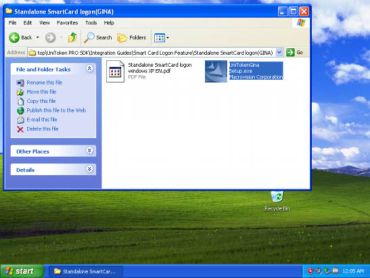
Navigate to the folder "Integration Guides/Smart Card Logon Feature/Standalone SmartCard logon(GINA)". Find the file "UniTokenGina.exe" and execute it to begin the installation.
|
|
| 2
|
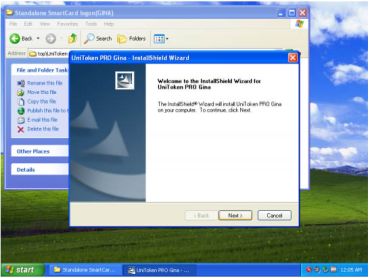
Click [Next] in the InstallShield welcome screen.
|
|
| 3
|
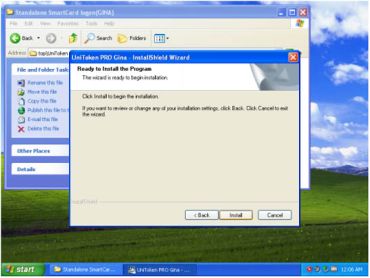
Click on [Install] to begin the installation.
|
|
| 4
|
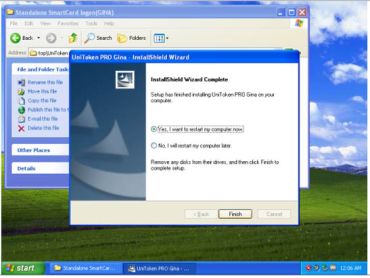
After installation has completed, the computer must be restarted. Choose either option and click [Finish] to complete the wizard.
|
|
Bind UniToken PRO to a Windows Account
| 1
|
Insert your UniToken PRO device into your computer, input the PIN code for the token and click on [Settings].
|
|
| 2
|
In the "UniToken Settings" window, under the "Add WinLogon User into Token", input the username, domain (leave domain blank if the computer is not member of a domain) and password. Click [Add] to bind the user with the token. Click [OK] to finish. Note: You can also delete a user from the token and change your token PIN using this tool.
|
|
Logging onto Windows
| 1
|
When logging onto your computer, insert your UniToken, input your PIN and click on [OK].
|
|
| 2
|
Select the user account that you wish to log in as (You can store numerous Windows account settings within your UniToken). Click on [OK] to log in. Logging onto the computer now only requires the correct UniToken device with it's corresponding password and no longer the Windows account password to log on.
|
|
Glossary
Graphical Identification and Authentication (GINA): a component of some Microsoft Windows operating systems that provides secure authentication and interactive logon services. GINA is also responsible for starting initial processes for a user (such as the Windows Shell) when they first log on. In Windows Vista, GINA has been entirely replaced by Credential Providers, which allow for significantly increased flexibility in supporting multiple credential collection methods. GINA libraries do not work with Windows Vista and later Windows versions. One difference, however, is that GINA could completely replace the Windows logon user interface; Credential Providers cannot.
Attachments


