|
|
| Line 4: |
Line 4: |
| == Mobile UniOTP First Launch and Configuration == | | == Mobile UniOTP First Launch and Configuration == |
|
| |
|
| {| cellspacing="0" cellpadding="0" border="0" width="" | | {| class="wikitable" |
| |- | | |- |
| | width="50" | '''1''' | | | width="50" | '''1''' |
| | width="400" | | | | width="400" | |
| <p>This is the screen shown the first time the Mobile UniOTP application is lauched.</p>
| | * This is the screen shown the first time the Mobile UniOTP application is lauched. |
| <p>At this step, you must set the password needed to access the application.</p>
| | * At this step, you must set the password needed to access the application. |
| <p>Fill in the fields [Password] and [Confirm Password] and tap the [Confirm] button.</p>
| | * Fill in the fields Password and Confirm Password and tap the Confirm button. |
| <p>The next time the application is launched, this password will be requested.</p>
| | * The next time the application is launched, this password will be requested. |
| <p>If you forgot this password, delete and reinstall the application on your device. If this is the case, you will need to resynchronize your One Time Password application with the server.</p>
| | * If you forgot this password, delete and reinstall the application on your device. |
| | [[Image:mobotp img01.jpg|270px]]<br><br> | | * If this is the case, you will need to resynchronize your One Time Password application with the server. |
| | | [[Image:mobotp img01.jpg|270px|alt=Mobile UniOTP login screen]] |
| |- | | |- |
| | width="50" | '''2''' | | | width="50" | '''2''' |
| | width="400" | <p>After setting the application password, you will be redirected automatically to the main screen.</p> | | | width="400" | |
| <p>From the main screen, tap [Synchronize] at the bottom of the screen to access to the synchronization interface.</p>
| | * After setting the application password, you will be redirected automatically to the main screen. |
| | [[Image:mobotp img02.jpg|270px]]<br><br> | | * From the main screen, tap Synchronize at the bottom of the screen to access to the synchronization interface. |
| | | [[Image:mobotp img02.jpg|270px|alt='password set successfully' message]] |
| |- | | |- |
| | width="50" | '''3''' | | | width="50" | '''3''' |
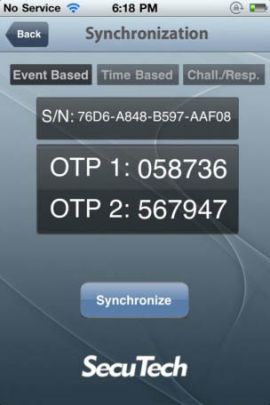
| | width="400" | <p>Select the type of One Time Password from the synchronization interface. You can choose | | | width="400" | |
| among [Event-Based], [Time-Based] and [Challenge/Response].</p> | | * Select the type of One Time Password from the synchronization interface. You can choose among Event-Based, Time-Based and Challenge/Response. |
| <p>Depending on the type of OTP chosen, information needed for synchronization is different. For reasons of security, Mobile UniOTP operates independently from use of network communication. Hence, please communicate to your administrator the information displayed on the screen.</p>
| | * Depending on the type of OTP chosen, information needed for synchronization is different. For reasons of security, Mobile UniOTP operates independently from use of network communication. Hence, please communicate to your administrator the information displayed on the screen. |
| <p>
| | * If you decide to use Mobile UniOTP with OTP MGS, you will need a token file. Please send your synchronization information to [mailto:support@esecutech.com support@esecutech.com] to receive the token file corresponding to your device within 24 hours. |
| If you decide to use Mobile UniOTP with OTP MGS, you will need a token file. Please send your synchronization information to support@esecutech.com to receive the token file corresponding to your device within 24 hours. | | * If you decide to use UniOTP API (included in UniOTP SDK), the information displayed here can be used directly. |
| </p>
| | | [[Image:mobotp img03.jpg|270px|alt=UniOTP synchronization information]] |
| <p>
| |
| If you decide to use UniOTP API (included in UniOTP SDK), the information displayed here can be used directly. | |
| </p>
| |
| | [[Image:mobotp img03.jpg|270px]]<br><br> | |
| |- | | |- |
| | width="50" | '''4''' | | | width="50" | '''4''' |
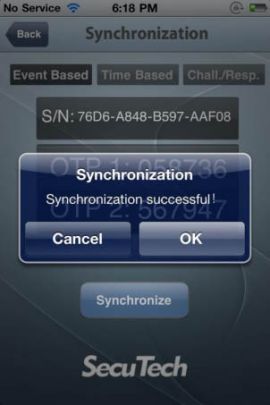
| | width="400" | <p>Once information has been communicated to your administrator, tap [Synchronize] to apply changes.</p> | | | width="400" | |
| <p>If returning to the main screen without synchronizing, synchronization information will not be saved and the application will not be able to generate correct One Time Passwords. Be sure to tap [Synchronize] before returning to the main screen.</p>
| | * Once information has been communicated to your administrator, tap Synchronize to apply changes. |
| <p>A message will be displayed if the synchronization succeeded.</p>
| | * If returning to the main screen without synchronizing, synchronization information will not be saved and the application will not be able to generate correct One Time Passwords. Be sure to tap Synchronize before returning to the main screen. |
| <p>Every time you open the Synchronization interface, new synchronization information is generated but is only saved if the [Synchronize] button tapped.</p>
| | * A message will be displayed if the synchronization succeeded. |
| | [[Image:mobotp img04.jpg|270px]]<br><br> | | * Every time you open the Synchronization interface, new synchronization information is generated but is only saved if the Synchronize button tapped. |
| | | [[Image:mobotp img04.jpg|270px|alt=synchronized successfully]] |
| |- | | |- |
| | width="50" | '''5''' | | | width="50" | '''5''' |
| | width="400" | | | | width="400" | |
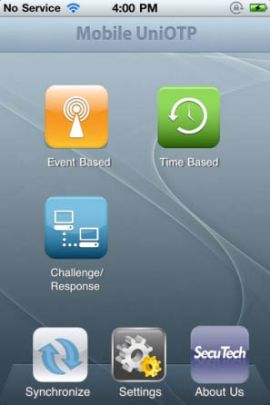
| <p>Once back to the main screen, tap the icon corresponding to your type of generated OTP to access to the OTP generation interface.</p>
| | * Once back to the main screen, tap the icon corresponding to your type of generated OTP to access to the OTP generation interface. |
| | [[Image:mobotp img05.jpg|270px]]<br><br> | | | [[Image:mobotp img05.jpg|270px|alt=OTP generation interface]] |
| |} | | |} |
|
| |
|
| == Event-Based OTP Generation== | | == Event-Based OTP Generation== |
|
| |
|
| {| cellspacing="0" cellpadding="0" border="0" width="" | | {| class="wikitable" |
| |- | | |- |
| | width="50" | '''1''' | | | width="50" | '''1''' |
| | width="400" | | | | width="400" | |
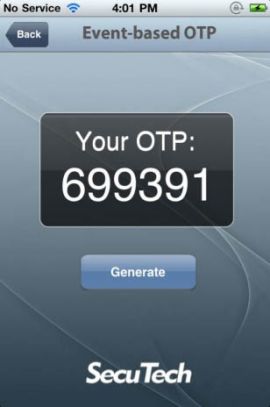
| <p>Each time the Event-Based OTP generation interface is accessed, a new password is automatically generated.</p>
| | * Each time the Event-Based OTP generation interface is accessed, a new password is automatically generated. |
| <p>The [Generate] button can be tapped to generate a new password.</p>
| | * The Generate button can be tapped to generate a new password. |
| <p>''Note: If you switch back and forth between the main screen and OTP generation screen, or if you generate a new OTP excessively in a short period of time, the OTP application may become desynchronized and would need to be synchronized again.''</p>
| | * ''Note: If you switch back and forth between the main screen and OTP generation screen, or if you generate a new OTP excessively in a short period of time, the OTP application may become desynchronized and would need to be synchronized again.'' |
| | [[Image:mobotp img06.jpg|270px]]<br><br> | | | [[Image:mobotp img06.jpg|270px|alt=OTP 699391 being displayed]] |
| |} | | |} |
|
| |
|
| == Time-Based OTP Generation == | | == Time-Based OTP Generation == |
|
| |
|
| {| cellspacing="0" cellpadding="0" border="0" width="" | | {| class="wikitable" |
| |- | | |- |
| | width="50" | '''1''' | | | width="50" | '''1''' |
| | width="400" | | | | width="400" | |
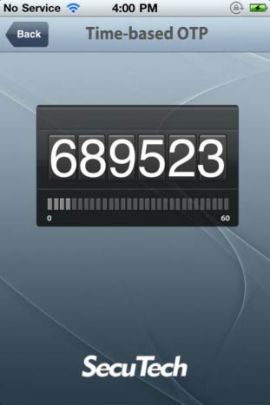
| <p>In the time-based OTP generation interface, a new password is generated every 60 seconds. Users cannot force the generation of a new password. For every time-based password generated, if 60 seconds have not lapsed, the password will remain the same, and thus only every 60 seconds is a new password generated.</p>
| | * In the time-based OTP generation interface, a new password is generated every 60 seconds. Users cannot force the generation of a new password. For every time-based password generated, if 60 seconds have not lapsed, the password will remain the same, and thus only every 60 seconds a new password generated. |
| <p>''Note: If the device time desynchronizes from the server time more than permitted, the device may get desynchronized. Please take note of this Make sure to not change the time of your device after you have synchronized it with the server.''</p>
| | * ''Note: If the device time desynchronizes from the server time more than permitted, the device may become desynchronized. Please take note of this, and make sure to not change the time of your device after you have synchronized it with the server.'' |
| | [[Image:mobotp img07.jpg|270px]]<br><br> | | | [[Image:mobotp img07.jpg|270px|alt=displaying time-based OTP]] |
| |} | | |} |
|
| |
|
| == Challenge/Response Password Generation == | | == Challenge/Response Password Generation == |
|
| |
|
| {| cellspacing="0" cellpadding="0" border="0" width="" | | {| class="wikitable" |
| |- | | |- |
| | width="50" | '''1''' | | | width="50" | '''1''' |
| | width="400" | | | | width="400" | |
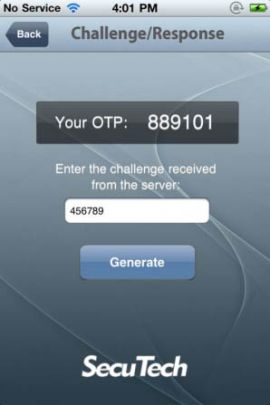
| <p>In order to generate a OTP using the Challenge and Response system, input of challenge code received from the server is required. Authentication will be determined by the correct response generated from the given challenge.</p>
| | * In order to generate a OTP using the Challenge and Response system, inputting a challenge code received from the server is required. Authentication will be determined by the correct response generated from the given challenge. |
| <br>'''Example of Use:'''<br>
| | |
| <p>After a user has logged onto a website, the server will display a challenge code to the user, requesting the user to input the corresponding OTP generated from this code. The user inputs the challenge code in the Challenge/Response interface to generate a OTP. This generated response is used to authenticate to the server and, hence, only the correct response can be used to successfully authenticate.</p>
| | '''Example of Use:''' |
| | [[Image:mobotp img08.jpg|270px]]<br><br> | | * After a user has logged onto a website, the server will display a challenge code to the user, requesting the user to input the corresponding OTP generated from this code. The user inputs the challenge code in the Challenge/Response interface to generate a OTP. This generated response is used to authenticate to the server and, hence, only the correct response can be used to successfully authenticate. |
| | | [[Image:mobotp img08.jpg|270px|alt=Enter challenge received and display current OTP]] |
| |} | | |} |
|
| |
|
| == Other Settings == | | == Other Settings == |
|
| |
|
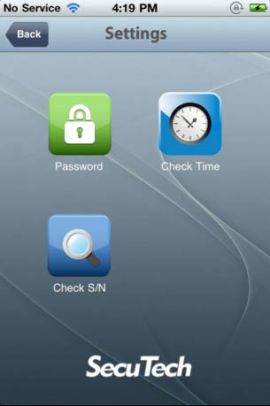
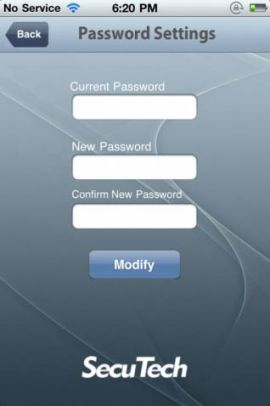
| <p>From the [Settings] screen, you can perform operations listed below.</p>
| | From the Settings screen, you can perform the operations listed below. |
| * Change the password for accessing the application | | * Change the password for accessing the application. |
| * Display the S/N (Serial Number) | | * Display the S/N (Serial Number). |
| * Display the device time | | * Display the device time. |
|
| |
|
| [[Image:mobotp img09.jpg|270px]] | | [[Image:mobotp img09.jpg|270px|alt=settings screen]] |
| [[Image:mobotp img10.jpg|270px]] | | [[Image:mobotp img10.jpg|270px|alt=change password screen]] |
Mobile UniOTP First Launch and Configuration
| 1
|
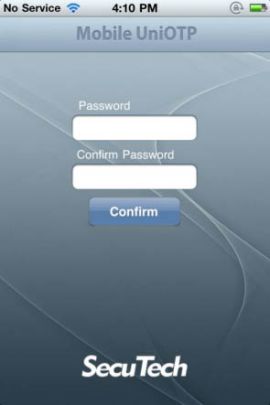
- This is the screen shown the first time the Mobile UniOTP application is lauched.
- At this step, you must set the password needed to access the application.
- Fill in the fields Password and Confirm Password and tap the Confirm button.
- The next time the application is launched, this password will be requested.
- If you forgot this password, delete and reinstall the application on your device.
- If this is the case, you will need to resynchronize your One Time Password application with the server.
|
|
| 2
|
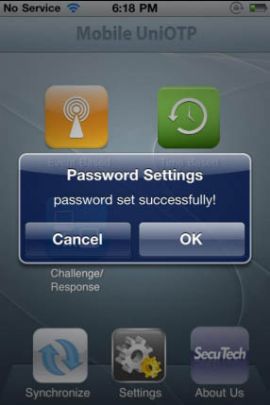
- After setting the application password, you will be redirected automatically to the main screen.
- From the main screen, tap Synchronize at the bottom of the screen to access to the synchronization interface.
|
|
| 3
|
- Select the type of One Time Password from the synchronization interface. You can choose among Event-Based, Time-Based and Challenge/Response.
- Depending on the type of OTP chosen, information needed for synchronization is different. For reasons of security, Mobile UniOTP operates independently from use of network communication. Hence, please communicate to your administrator the information displayed on the screen.
- If you decide to use Mobile UniOTP with OTP MGS, you will need a token file. Please send your synchronization information to support@esecutech.com to receive the token file corresponding to your device within 24 hours.
- If you decide to use UniOTP API (included in UniOTP SDK), the information displayed here can be used directly.
|
|
| 4
|
- Once information has been communicated to your administrator, tap Synchronize to apply changes.
- If returning to the main screen without synchronizing, synchronization information will not be saved and the application will not be able to generate correct One Time Passwords. Be sure to tap Synchronize before returning to the main screen.
- A message will be displayed if the synchronization succeeded.
- Every time you open the Synchronization interface, new synchronization information is generated but is only saved if the Synchronize button tapped.
|
|
| 5
|
- Once back to the main screen, tap the icon corresponding to your type of generated OTP to access to the OTP generation interface.
|
|
Event-Based OTP Generation
| 1
|
- Each time the Event-Based OTP generation interface is accessed, a new password is automatically generated.
- The Generate button can be tapped to generate a new password.
- Note: If you switch back and forth between the main screen and OTP generation screen, or if you generate a new OTP excessively in a short period of time, the OTP application may become desynchronized and would need to be synchronized again.
|
|
Time-Based OTP Generation
| 1
|
- In the time-based OTP generation interface, a new password is generated every 60 seconds. Users cannot force the generation of a new password. For every time-based password generated, if 60 seconds have not lapsed, the password will remain the same, and thus only every 60 seconds a new password generated.
- Note: If the device time desynchronizes from the server time more than permitted, the device may become desynchronized. Please take note of this, and make sure to not change the time of your device after you have synchronized it with the server.
|
|
Challenge/Response Password Generation
| 1
|
- In order to generate a OTP using the Challenge and Response system, inputting a challenge code received from the server is required. Authentication will be determined by the correct response generated from the given challenge.
Example of Use:
- After a user has logged onto a website, the server will display a challenge code to the user, requesting the user to input the corresponding OTP generated from this code. The user inputs the challenge code in the Challenge/Response interface to generate a OTP. This generated response is used to authenticate to the server and, hence, only the correct response can be used to successfully authenticate.
|
|
Other Settings
From the Settings screen, you can perform the operations listed below.
- Change the password for accessing the application.
- Display the S/N (Serial Number).
- Display the device time.